01 / Identify the route
Start by naming what the Portal is streaming from
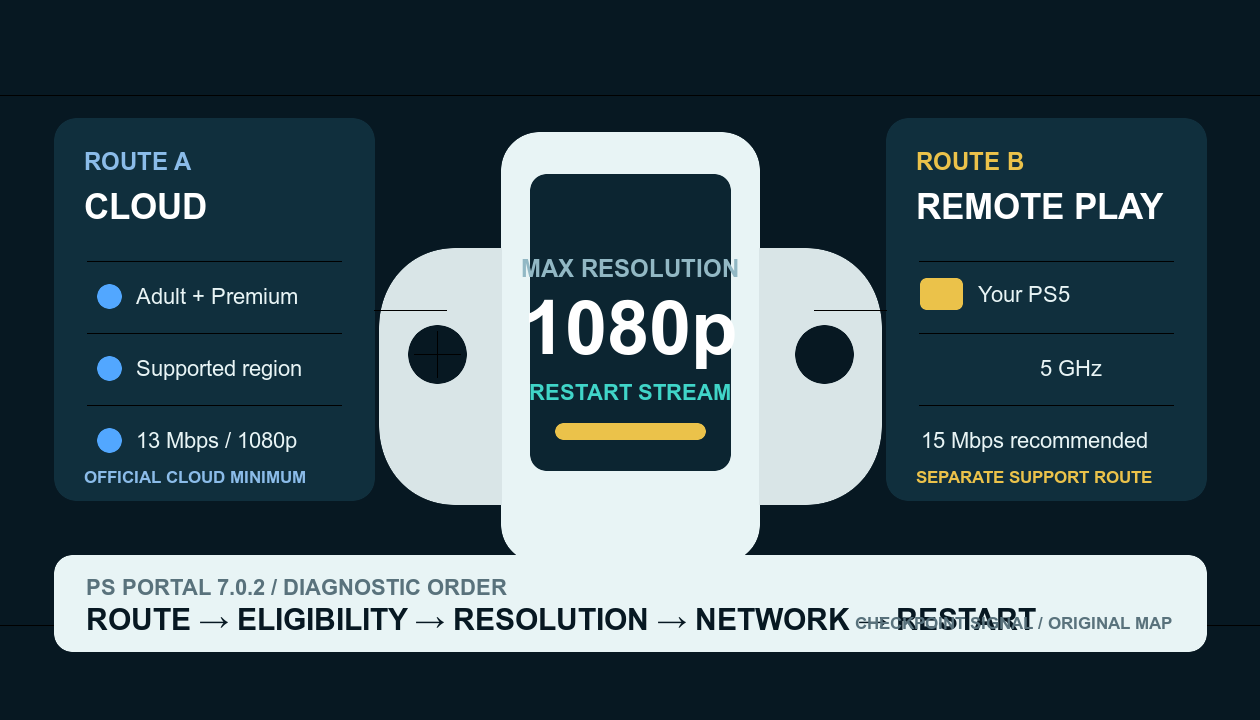
Cloud Streaming launches eligible games from PlayStation's servers. Remote Play streams from your own PS5. The device can show similar symptoms on both routes, but account eligibility and published network thresholds are not interchangeable.
Cloud Streaming
Adult account, PlayStation Plus Premium, supported region, and an eligible title.
Remote Play
Your PS5, its network state, and the connection between console, router, and Portal.
Do not merge
The 13 Mbps 1080p minimum is documented for Cloud Streaming, not as a universal Remote Play guarantee.
02 / Missing High Quality
Verify firmware, mode, and eligibility before resetting anything
- Open Settings and check system software. PlayStation currently lists version 7.0.2; version 7.0.0 introduced the 1080p High Quality control.
- Confirm the streaming route. A Cloud Streaming eligibility failure is not fixed by changing the PS5 Remote Play connection.
- For Cloud Streaming, confirm the account boundary. The signed-in account must be an adult account with PlayStation Plus Premium in a supported country or region.
- Open the Quick Menu while streaming. Use Max Resolution to select the available quality for that session.
03 / Unstable 1080p
Reduce competing traffic before blaming the display or storage
For Cloud Streaming, PlayStation lists 5 Mbps to establish a session, 7 Mbps minimum for 720p, and 13 Mbps minimum for 1080p. These are minimum connection figures, not a guarantee that a congested or variable route will remain at 1080p.
- Check the Portal's network status and test again near the router.
- Pause downloads, uploads, and other high-bandwidth activity on the same network.
- Use 5 GHz Wi-Fi when the local layout permits; PlayStation recommends it for Remote Play troubleshooting.
- For Remote Play, use PlayStation's separate guidance: 5 Mbps minimum and at least 15 Mbps recommended for the best experience.
- If 1080p remains unstable, test 720p as a diagnostic comparison rather than repeatedly rebooting or deleting data.
04 / Apply the setting
Restart the stream after changing Max Resolution
PlayStation's Cloud Streaming support page states that a Max Resolution change takes effect after the stream is restarted. End the current stream normally, reopen it, and then evaluate stability. A setting changed mid-session without that restart is not a valid comparison.
05 / Stop line
Do not factory-reset the Portal for an unresolved route question
Before a destructive action, record the system-software version, Cloud Streaming or Remote Play route, account tier and region for cloud use, chosen Max Resolution, network-status result, and any visible error code. Escalate with that evidence if the same failure reproduces on a known-good network.